Stock per location
The Stock per location page shows what lies where, per warehouse and per location: which items, how many, on which license plates, how much of it is reserved and which warehouse work touches the location.
The page is read-only. Moving, counting or reserving stock is done in D365 or on the scanner.
Choosing a company
Choose the Company at the top right. Auto is your default company in D365. The page remembers its own choice; the other pages keep their own company. The list of companies is shared with the Product Overview and the Orders Dashboard: manage it with ⚙.
The page always shows one company at a time, because warehouse and location codes can repeat in every company.
Choosing a warehouse
Choose the Warehouse at the top right. The list shows the locations of that one warehouse. The page remembers, per company, which warehouse you looked at last and opens on it next time.
Locations
Locations are loaded 100 at a time as you scroll. The page already fetches the next ones, so you can keep scrolling without waiting.
| Column | Meaning |
|---|---|
| Status | Occupied, Empty, Fully reserved or Blocked |
| Zone, Aisle, Location profile, Location type | From the location data in D365 |
| Items | The number of different items in the location |
| License plates | The number of license plates holding stock |
| On hand, Reserved, Available | The sum over every item in the location, each in its own inventory unit. Reserved is what the open picking work in the location holds; On hand and Reserved appear once the open work has loaded |
| Open work | The number of open work lines (Open, In process, Pending review) that pick from or put to this location |
| Last counted | When the location was last counted |
| Input blocking, Output blocking | The blocking cause, when the location is blocked |
At the top of the list, the Reserved, no location yet row appears when orders reserve stock in this warehouse but have no warehouse work yet. D365 only chooses the location of such a reservation when the work is created. What is already in a location (picked and staged, or with open work) is not counted in this row: you see it with that location. This row is not a location: it does not count toward the tiles and is hidden while you search or filter.
Click the row to see the reservations per item. The Overview tab shows how much D365 reserves at warehouse level in total, how much of it is already in a location, and in which. On the Reservations tab, the Free stock in column shows, per item, the locations with free stock of the same item and inventory status, largest first. Short means that free stock does not cover the reservation. This is where the stock is, not the location D365 will choose.
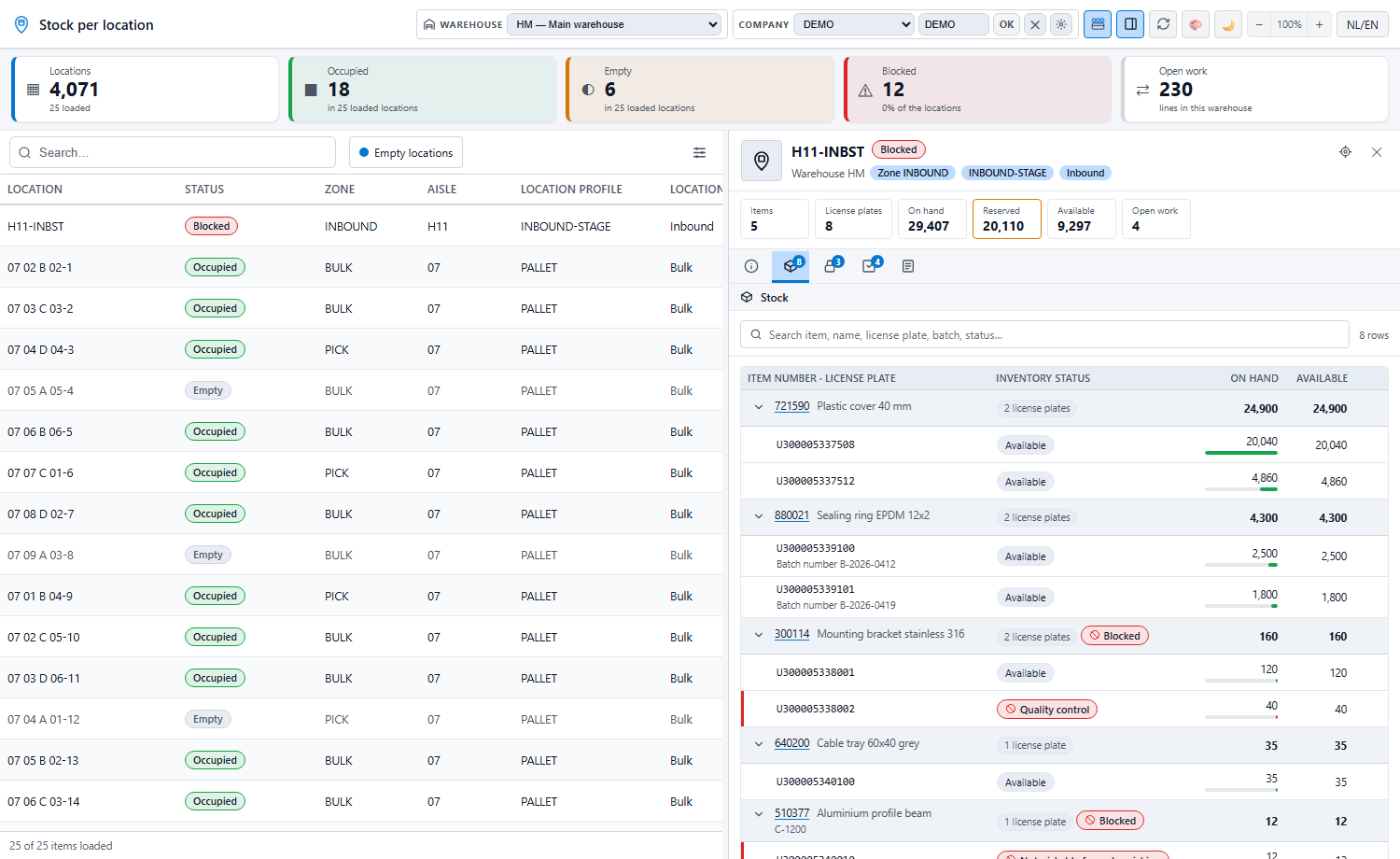
A location is only Empty when all three quantities are zero, so a location whose stock is all reserved does not count as empty: its status is Fully reserved. Blocked means input or output is blocked, or there is stock in an inventory status that cannot be picked.
Search looks at location, zone, aisle and location profile, across the whole warehouse. Type your search; the page searches as soon as you pause typing, or right away when you press Enter. Filters on the location data (location, zone, aisle, profile, type, status, blocking, last counted) also apply to the whole warehouse, including does not contain, is one of and a pasted list of locations. With a search or filter too, the page loads 100 locations at a time and fetches more as you scroll. The stock columns (status, items, license plates, quantities, open work) come from other data in D365, so you can't sort or filter on them; this keeps the page fast. Empty locations are always listed.
The tiles at the top show the number of locations, blocked locations and open work lines of the whole warehouse. Occupied and Empty count over the locations loaded so far; the line under the number says so.
Refresh (or F5) reads everything from D365 again.
Viewing a location
Click a location. The detail panel opens. At the top are the location, its status and the totals: items, license plates, on hand, reserved, available and open work. Below them are five tabs.
Overview
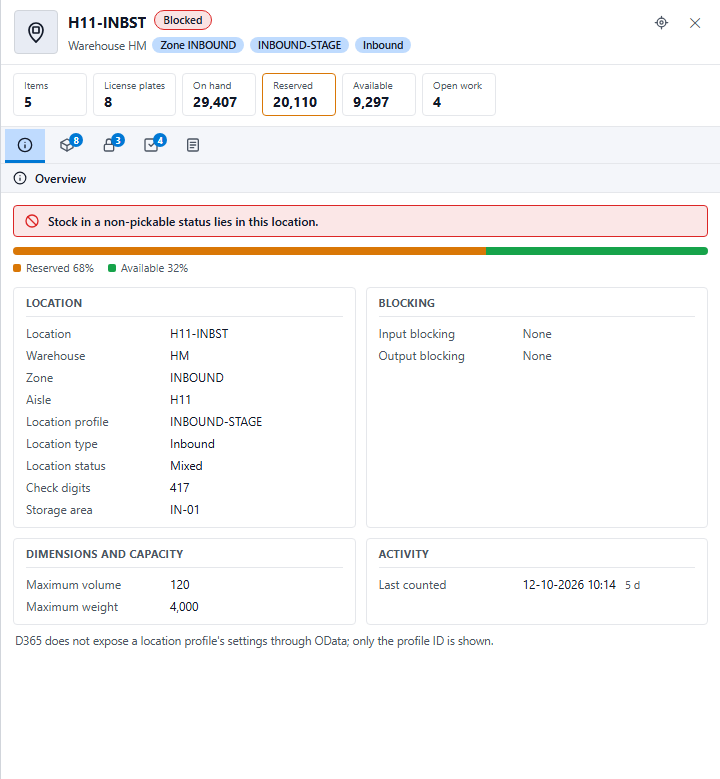
The Overview tab shows the location data in blocks: the location itself (zone, aisle, rack/shelf/bin, profile, type), its blocking, its dimensions and capacity, and when it was last counted. The bar shows which part of the stock is reserved and which part is available. When stock lies in a status that cannot be picked, or the location is blocked, a red message at the top says so.
Stock
The Stock tab groups the stock per item. For each item you see its name, its variant, the number of license plates and the totals; below it are the license plates with batch, serial number, inventory status and quantities. The arrow in front of an item collapses or expands its license plates. The bar under a quantity shows how large that row is compared with the largest row in the location.
An inventory status that cannot be picked gets a red edge, a stop sign and the name of the status. Click an item number to open it in the Product Overview.
Reservations
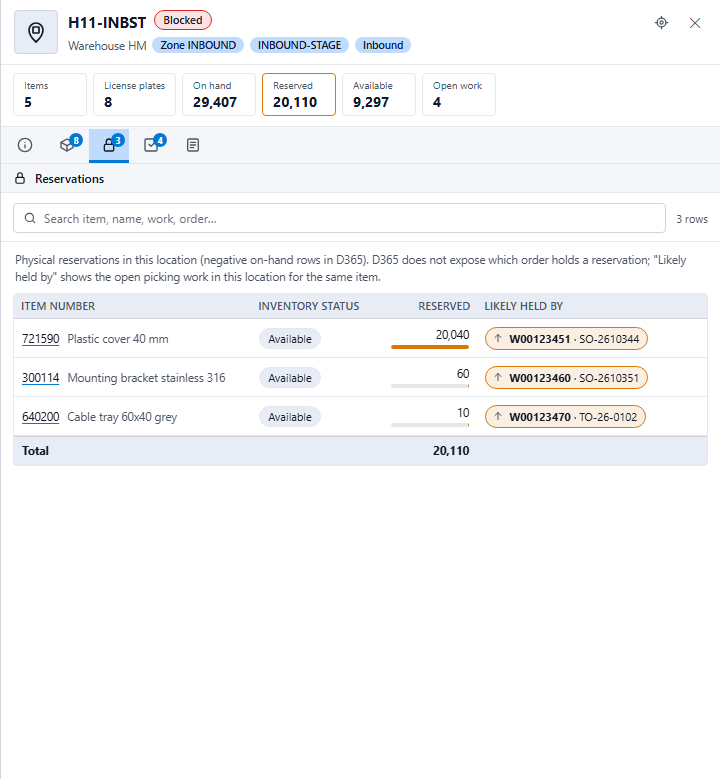
The Reservations tab shows, per item, what is reserved in the location. D365 usually takes the reservation of picking work straight off the on-hand row; the page counts it back in, so you see how much is there and how much of it is about to be picked. The Picking work column shows the open picking work in this location for the same item, with its order number. Click it to open the work in D365. When there is no picking work for the item, it says No picking work.
Warehouse work
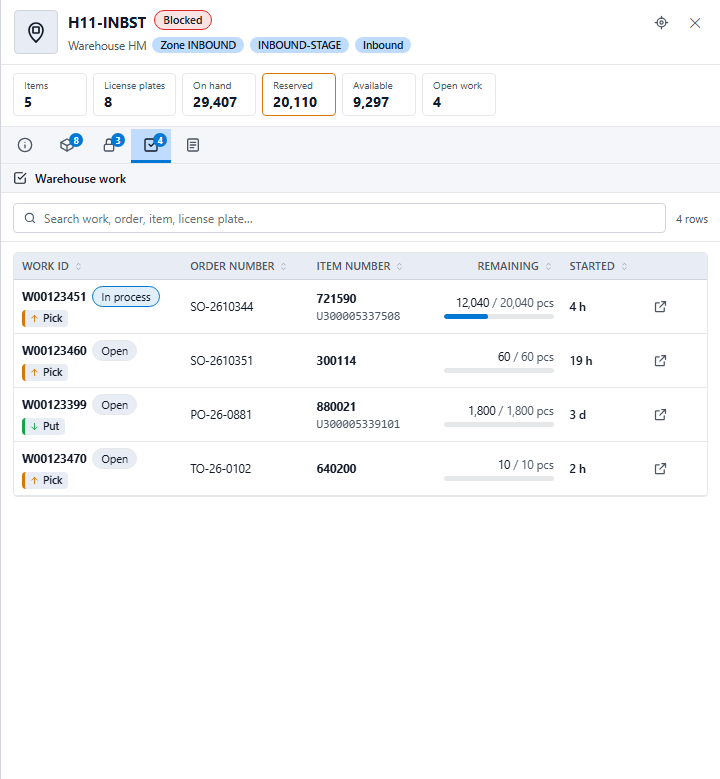
The Warehouse work tab shows the open work lines in the location. For each line you see its status, whether it picks or puts away, the order number, the item with its license plate, how much of the work quantity remains (the bar shows the part already processed) and how long ago the work started. The arrow button on the right opens the work in D365.
Counting
The Counting tab shows the counting lines for this location, newest first: the counting date and journal, the item and license plate, the stock before the count and the counted quantity, the adjustment and the reason code. An adjustment upwards is green with an arrow up, an adjustment downwards red with an arrow down.
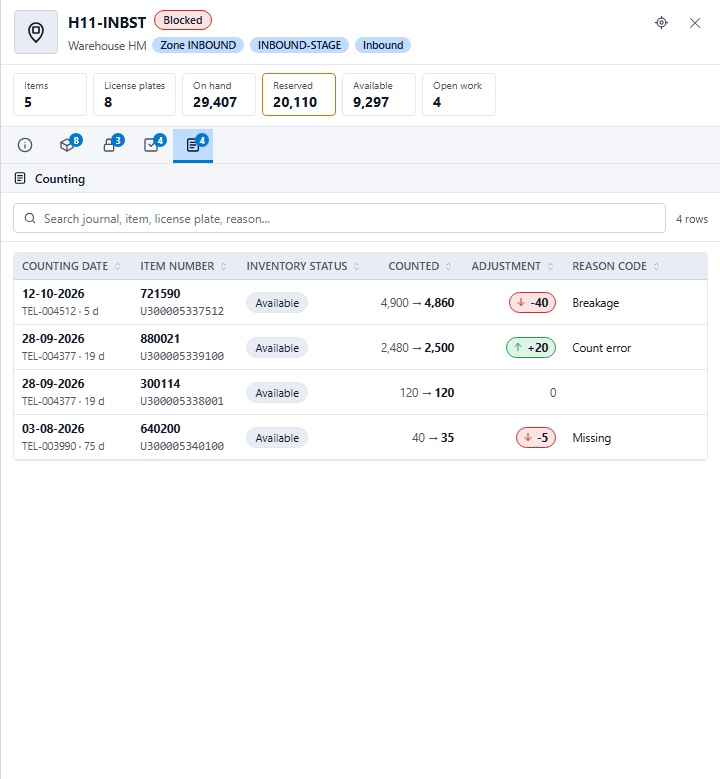
Searching and sorting within a tab
Every tab with rows has a search box at the top. It searches the rows of this location without asking D365 again: item number, name, license plate, batch, status, work ID, order number or journal. When you type several words, a row must contain all of them. Matches are marked, the number of rows you see is shown on the right, and the total at the bottom counts only the rows shown. Esc or the cross clears the search; arrow down jumps to the first row.
On the Warehouse work and Counting tabs you sort by clicking a column heading. Click again to reverse, and a third time to clear the sort.
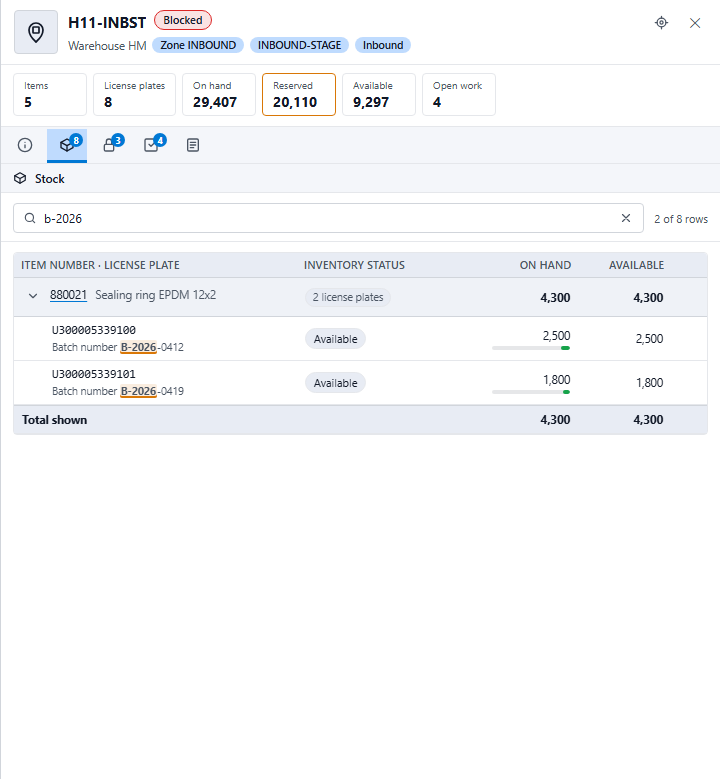
Actions per row
Right-click a row, or click the ⋯ button that appears when you move over the row. With the keyboard: go to a row with Tab or the arrow keys and press the menu key or Shift+F10. Depending on the row you can:
- view the item in the Product Overview;
- open the Article forecast, the Article mutations or DynInsight of the item;
- open the item's Vault drawing;
- open the item or the warehouse work in D365;
- copy the item number, license plate, batch number, work ID, order number or journal number.
The menu only shows what you may open. Article mutations is listed when, in the settings under Article windows, Open forecast and mutations in their own window is on. DynInsight shows the mutations too.
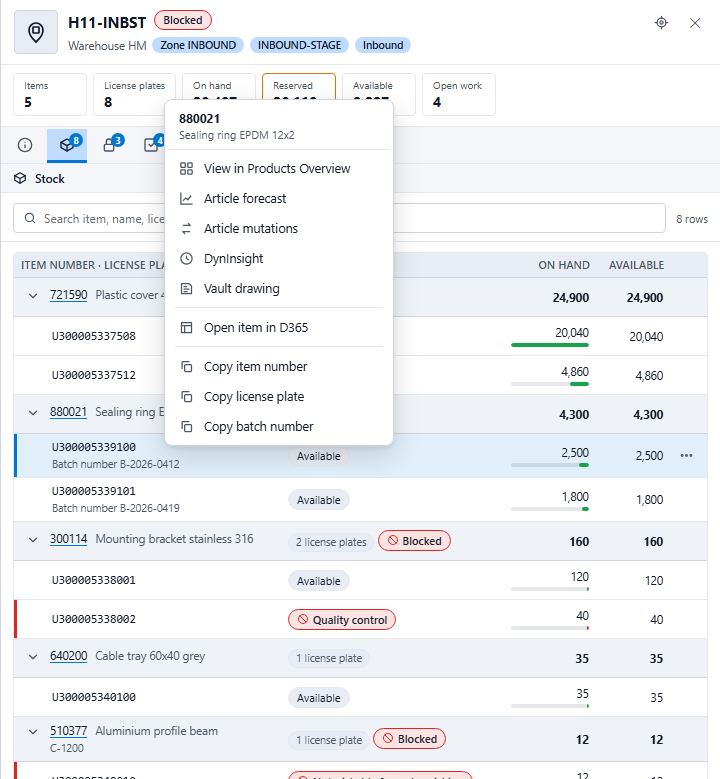
Printing
Right-click a location and choose Print…, or use the Print button in the toolbar. Choose a template from Document Designer and select the rows (at most 50). This is how you print location labels or a stock list per location, for example.
Design template… creates a new template with the clicked row as its example.
Note
To read stock per location, your D365 account needs read access to the on-hand data per location. Without it, the page shows the locations without quantities and a message above the list. Ask your D365 administrator for read access.